How Can We Help?
Dismissing and Preventing Scareware and Other Malicious Pop-ups
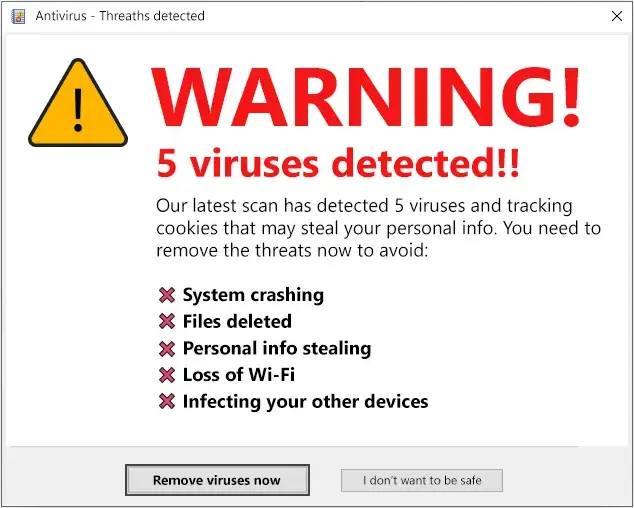
‘Scareware’ is a technique used by malicious actors to influence you into taking action through a sense of insecurity, fear or panic. Scareware can include aggressive notifications, full-screen popups, and audio such as alarms or synthetic voices.
Disabling an active Scareware attack:
See Clearing your Browser’s History, Cache, and Cookies
Once you’ve contained an active attack, follow the steps below to restrict notification permissions and enable content blocking for your preferred web browser: Google Chrome, Microsoft Edge, Mozilla Firefox.
Google Chrome
Restrict pop-up and notification permissions
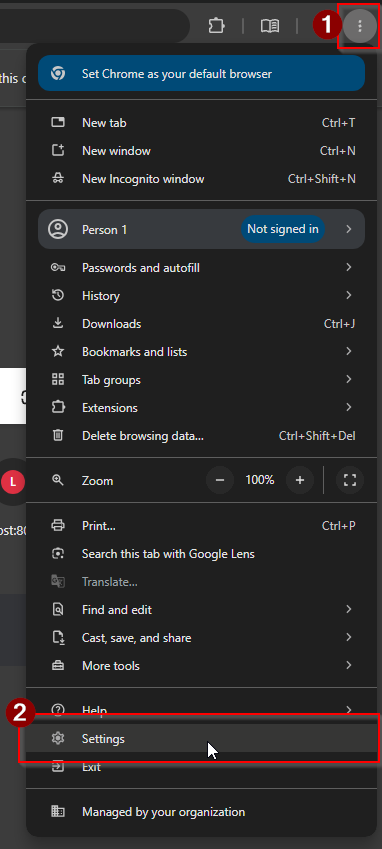
- Select the ‘three dots’ icon in the top right corner of the Chrome toolbar
- Select ‘Settings’
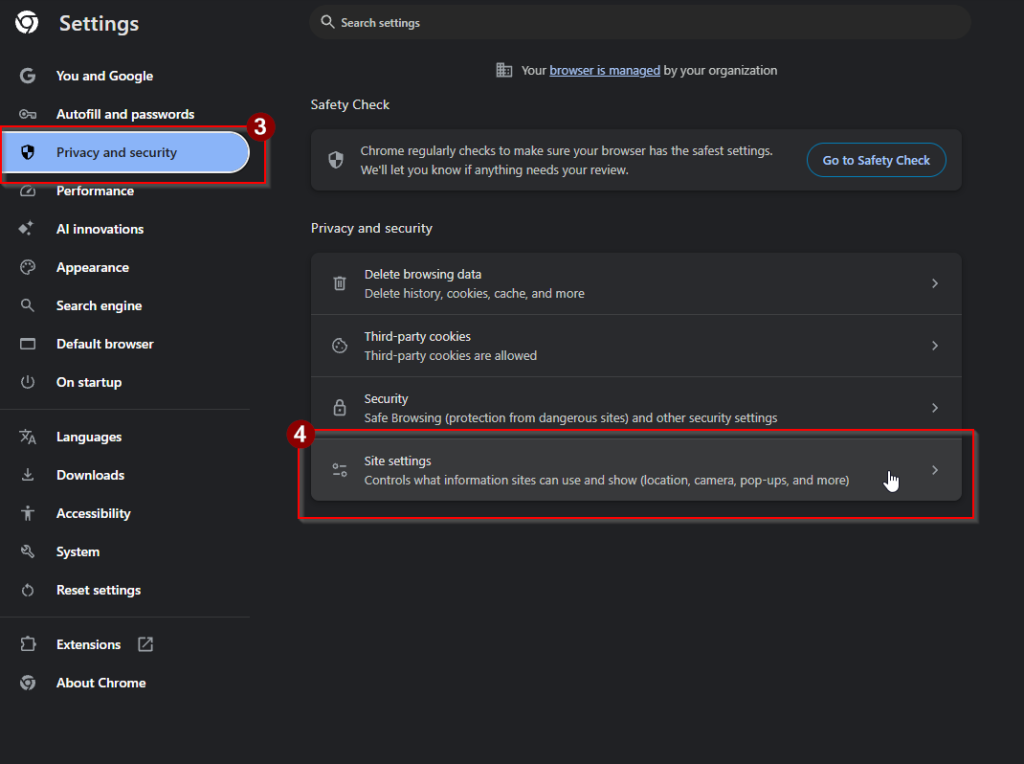
- In the left sidebar, select ‘Privacy and security’
- Select ‘Site settings’
- Ensure both Notifications and Pop-ups are blocked b y default. This will ensure that a website must get your explicit permission before sending notifications or popups.
Microsoft Edge
Restrict pop-up and notification permissions
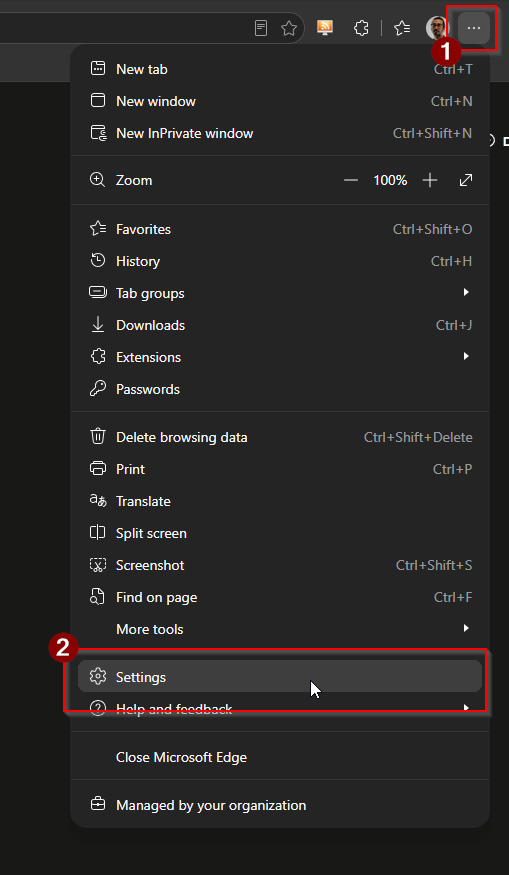
- Select the ‘three dots’ icon in the top right corner of the Edge toolbar
- Select ‘Settings’
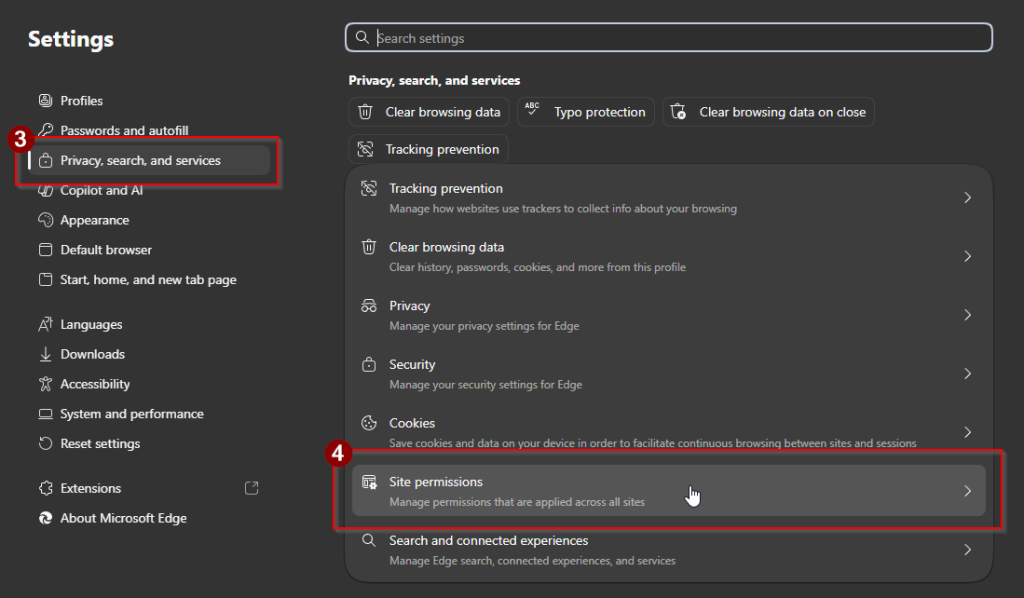
- In the left sidebar, select ‘Privacy, search, and services’
- Select ‘Site permissions’
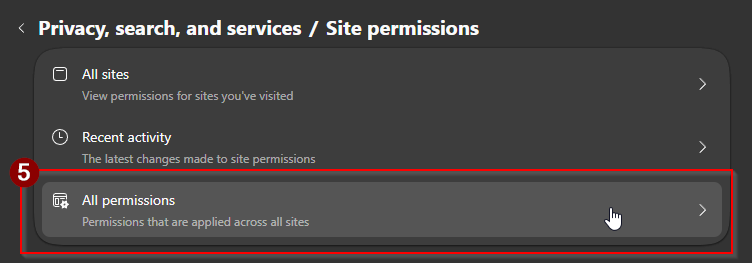
- Select ‘All permissions’
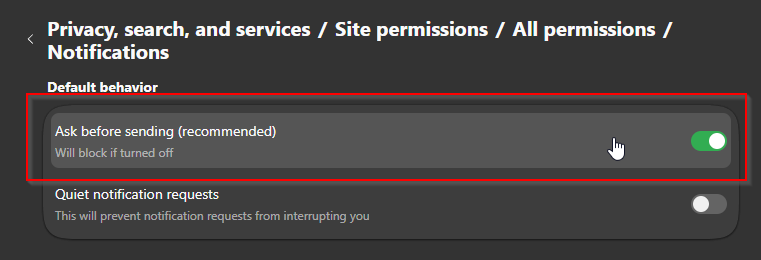
- Ensure both ‘Notifications’ and ‘Pop-ups and redirects’, are blocked by default. This will ensure that a website must get your explicit permission before sending notifications or popups.
Prevention
- Install the uBlock Origin extension for Edge.
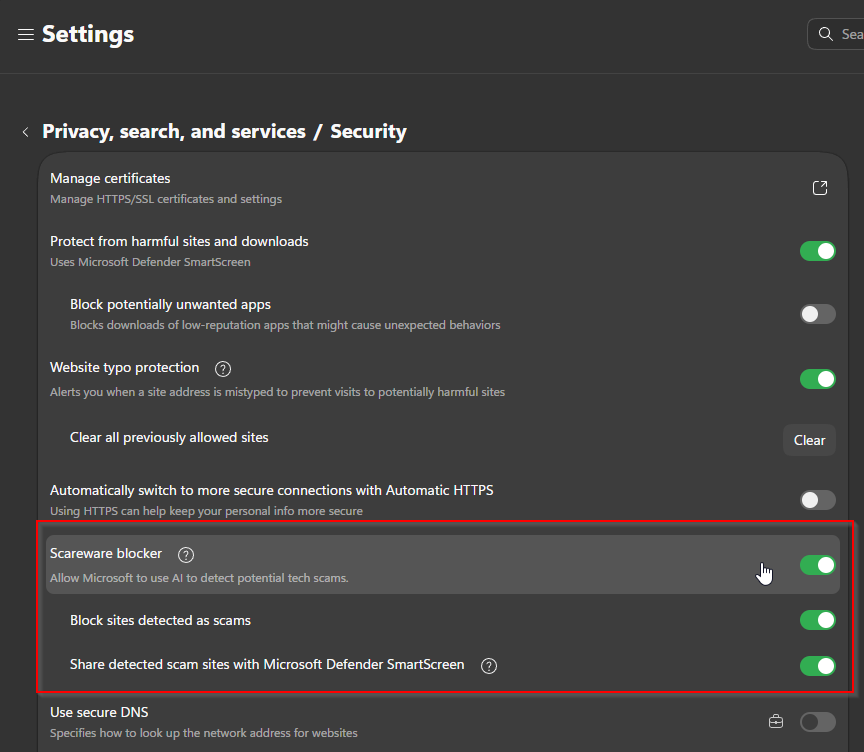
- Enable Edge’s built-in scareware blocker.
Mozilla Firefox
Restrict pop-ups and notifications
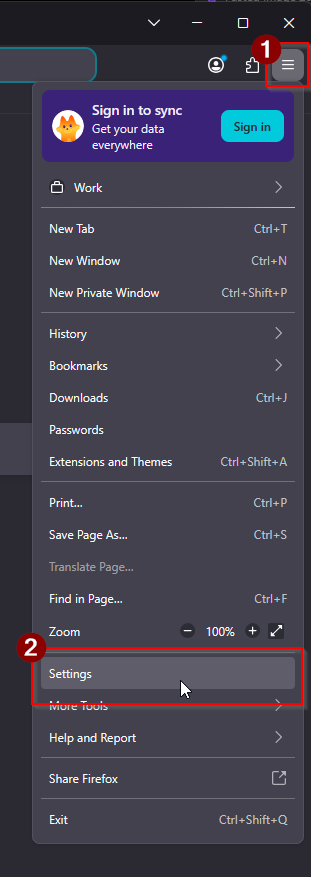
- Select the ‘3-layer’ icon in the top right of the Firefox toolbar
- Select ‘Settings’
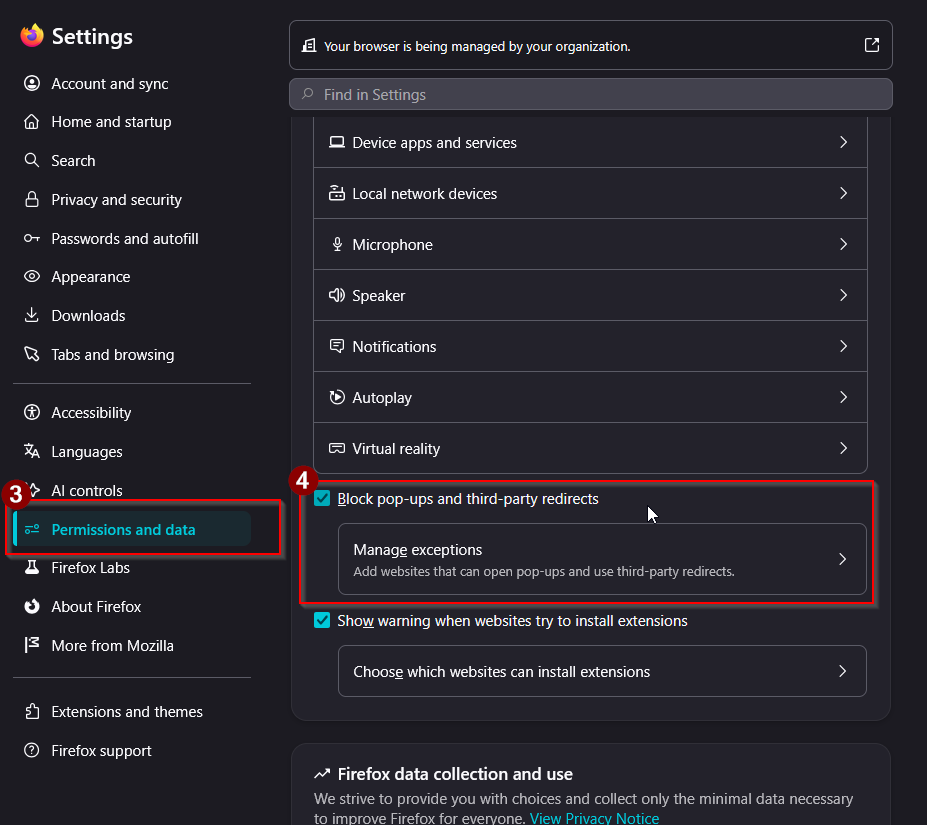
- In the left sidebar, select ‘Permissions and data’
- Under ‘Permissions’, check the box next to ‘Block pop-ups and third-party redirects’
Prevention
- Install the uBlock Origin extension for Firefox