How Can We Help?
Troubleshooting Computer Performance
Check for updates
- Check for Updates in Windows 11. Some driver updates may improve the performance of your device.
Clear browser cache
- Clearing your Browser’s History, Cache, and Cookies. Web browsers store information from websites. Clearing this information from your web browser may help your computer and browser run faster.
Change power plan to “High Performance”
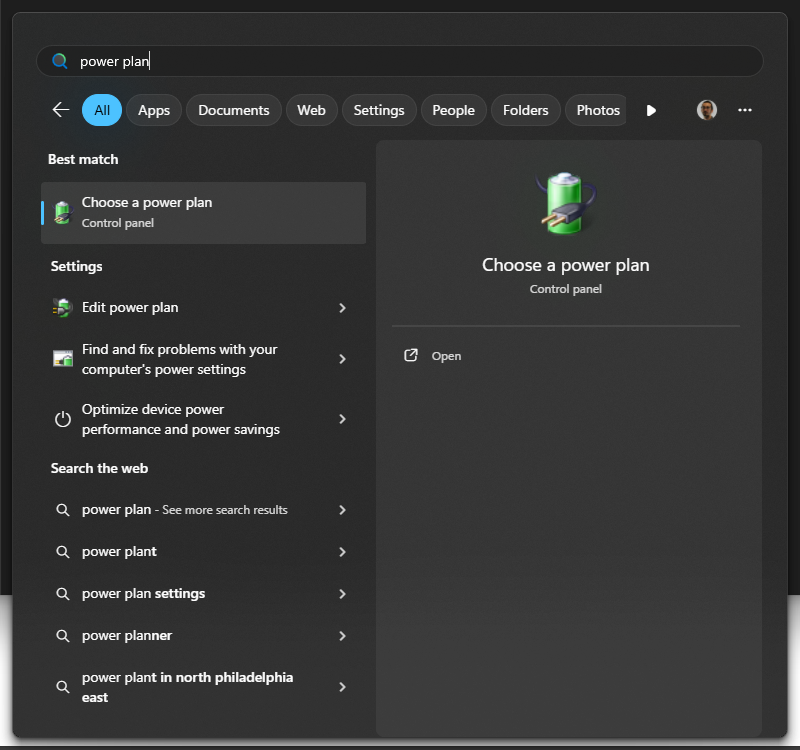
- In the Windows search bar, type “power plan”
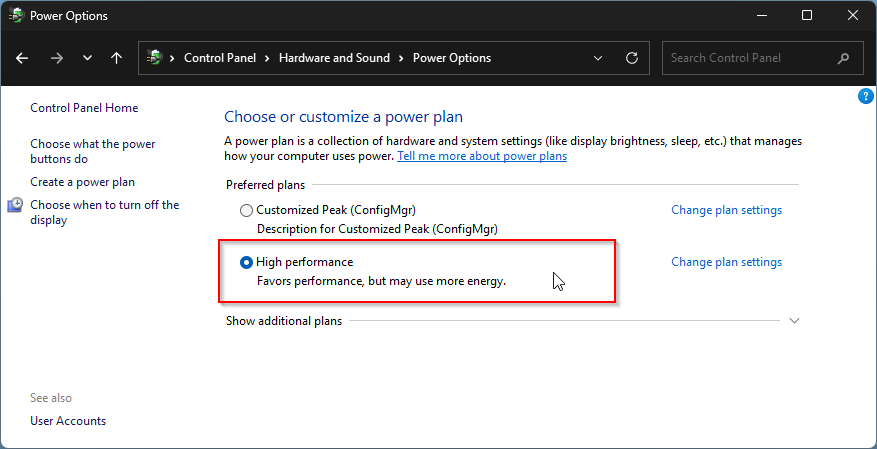
- Change the preferred plan to “High Performance”
Apply Storage Management suggestions
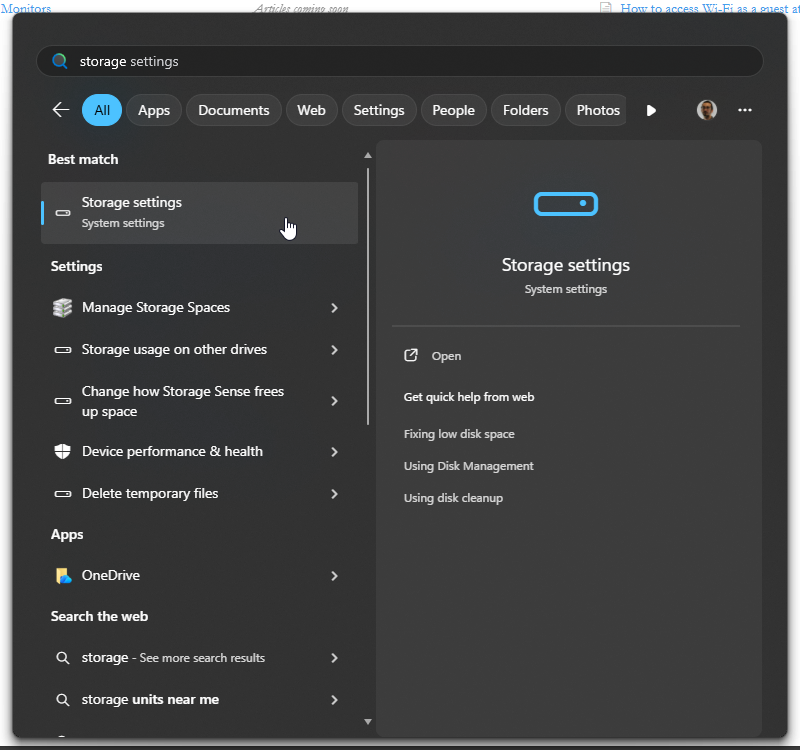
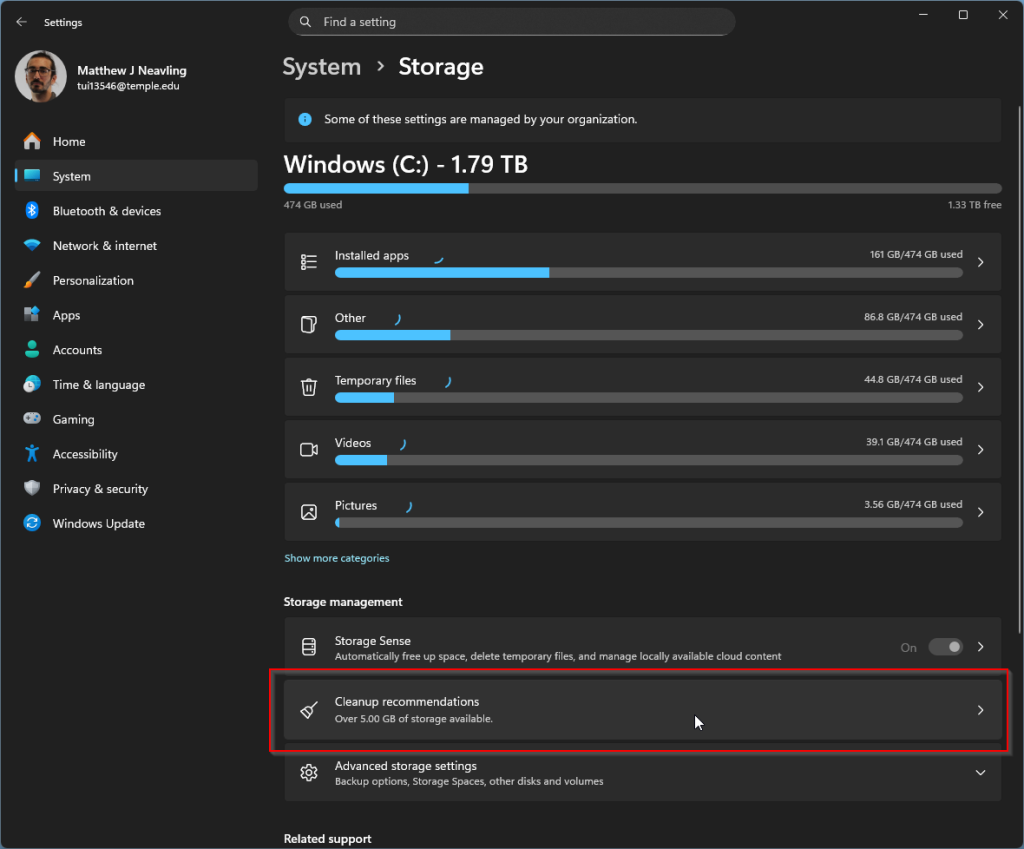
- In the Windows search bar, type “Storage settings”
- Click “Cleanup recommendations”
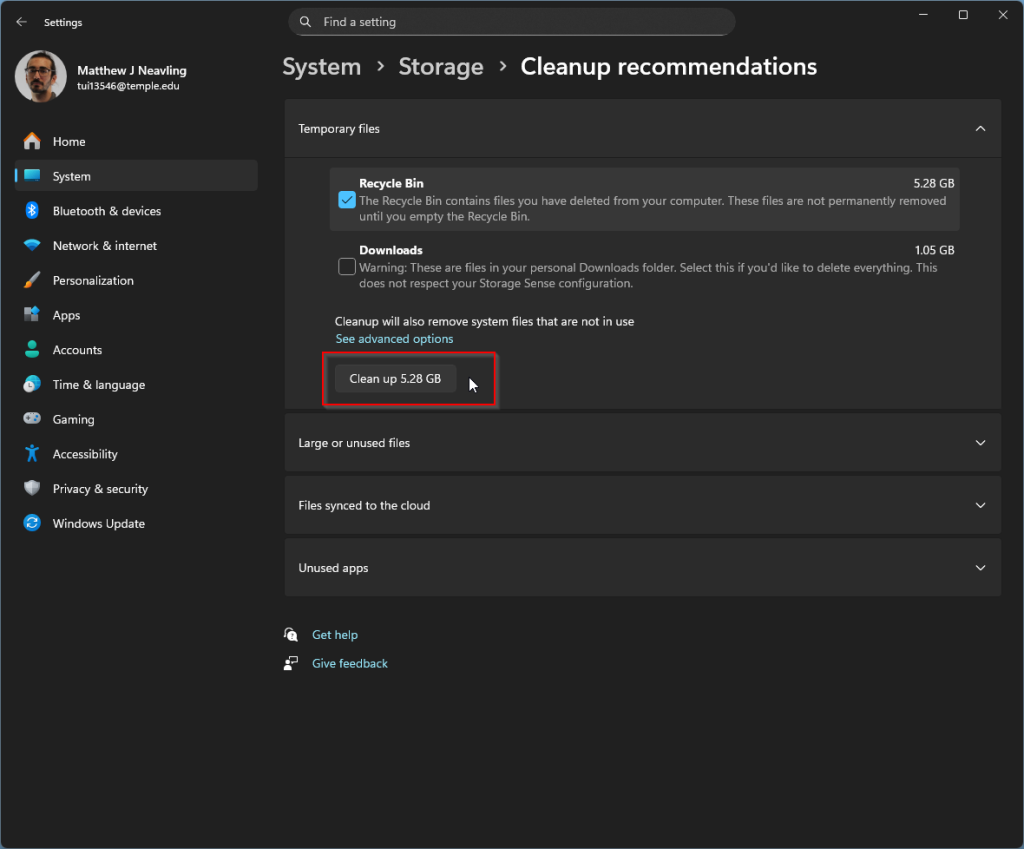
- Check the box next to the types of files you’d like to delete, then click “Clean up”
Close unused browser tabs
- Having many web browser tabs open at once can be very resource-intensive. Close browser tabs you’re not using.
Identify resource-demanding processes in Task Manager
- Right click on the Windows tool bar, OR search for “Task Manager” in the Windows search bar
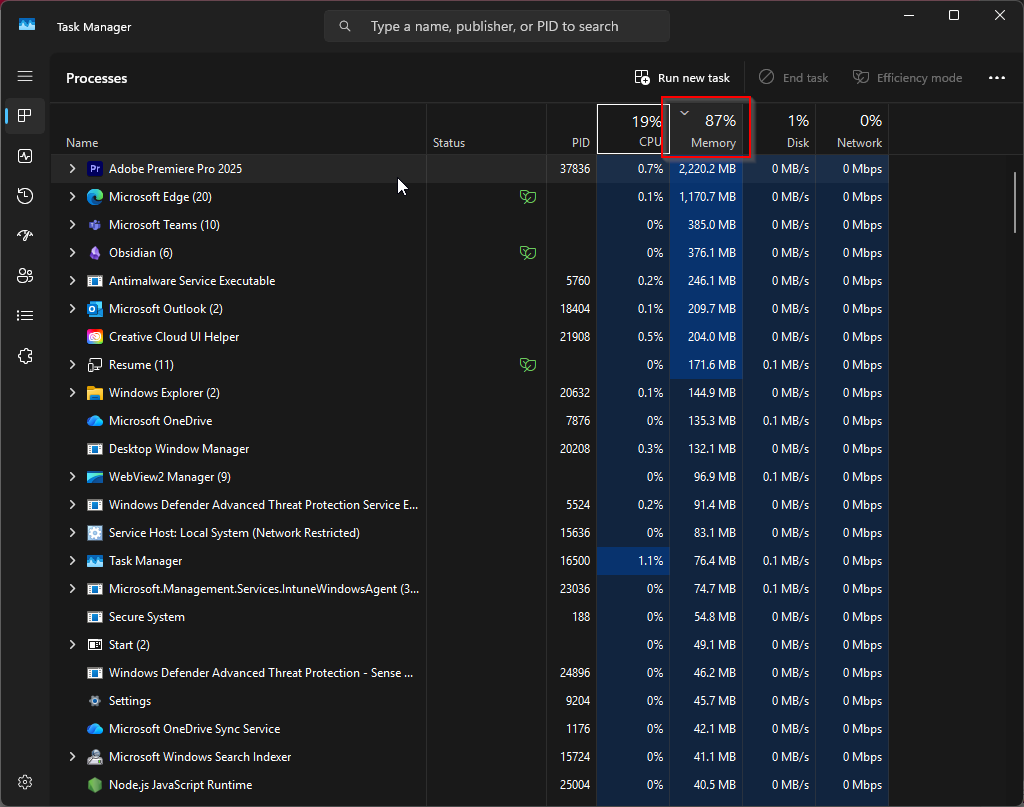
- Click on the “Memory” column header to by how much of your device’s memory each process is using.
- Close memory-intensive applications that you’re not presently using.