How Can We Help?
Installing Adobe Acrobat Pro
- Sign in to Adobe Creative Cloud with your Temple email (AccessNet)
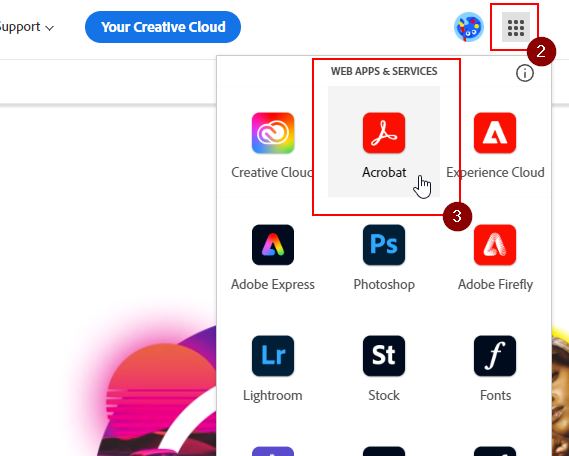
- Select the waffle icon (9-dot grid) in the top right corner
- Select “Acrobat”
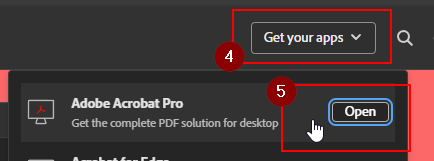
- Select “Get your apps” in the top right corner
- Select “Adobe Acrobat Pro” (the screenshot says “Open”, but your screen will say “Download”)
- Run the installer1.
- If the installer prompts you with a sign-on screen, please contact your IT support. Installing Acrobat Pro required administrative privileges to your device, which should have been added when IT provisioned your device. ↩︎