How Can We Help?
Clearing your Browser’s History, Cache, and Cookies
Browsing history, cache, and cookies are data that your browser stores from websites you visit while on the internet. These data are useful for websites to automatically log you in, remember your settings, and revisit previously visited pages. But they can also be the cause of some technical issues.
This article explains how to delete browsing data in Google Chrome, Microsoft Edge, and Mozilla Firefox.
Google Chrome
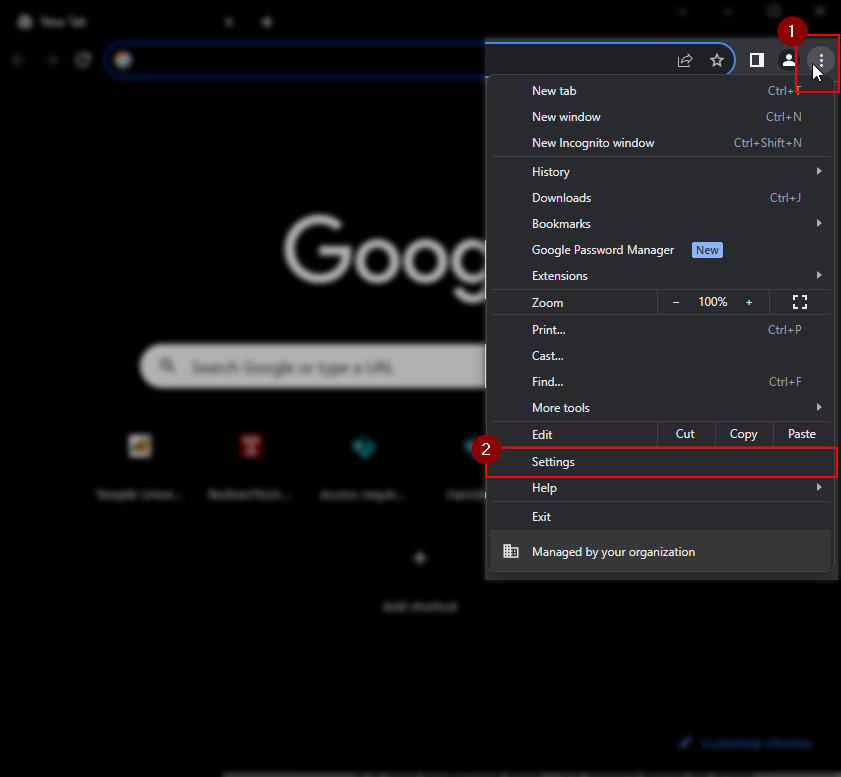
- Click the vertical ellipses button in the top right of the browser.
- Select Settings
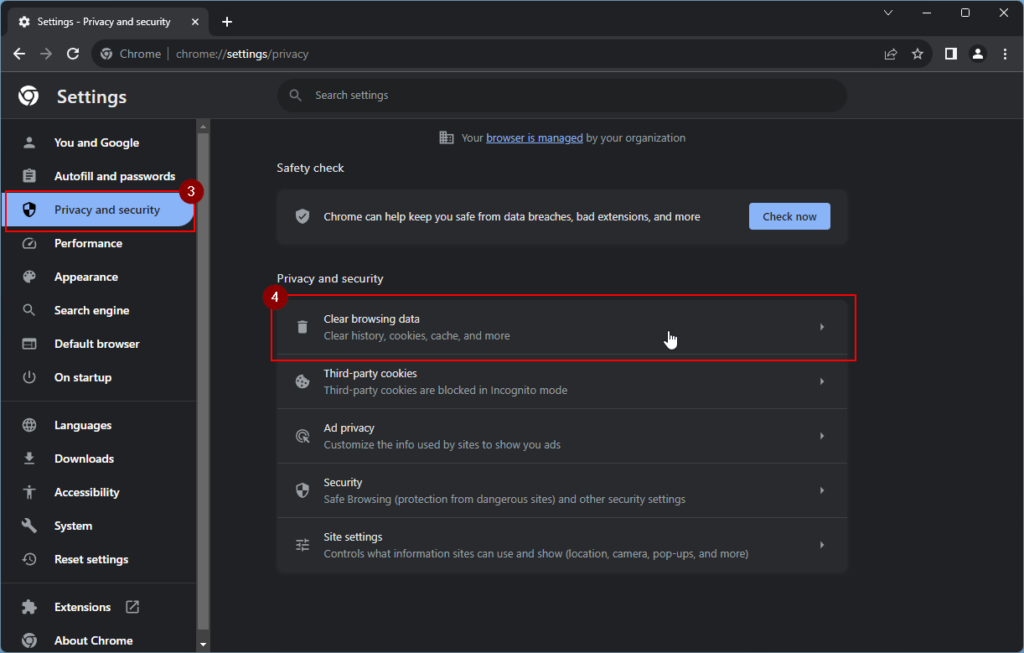
- Select Privacy and Security
- Click Clear browsing data
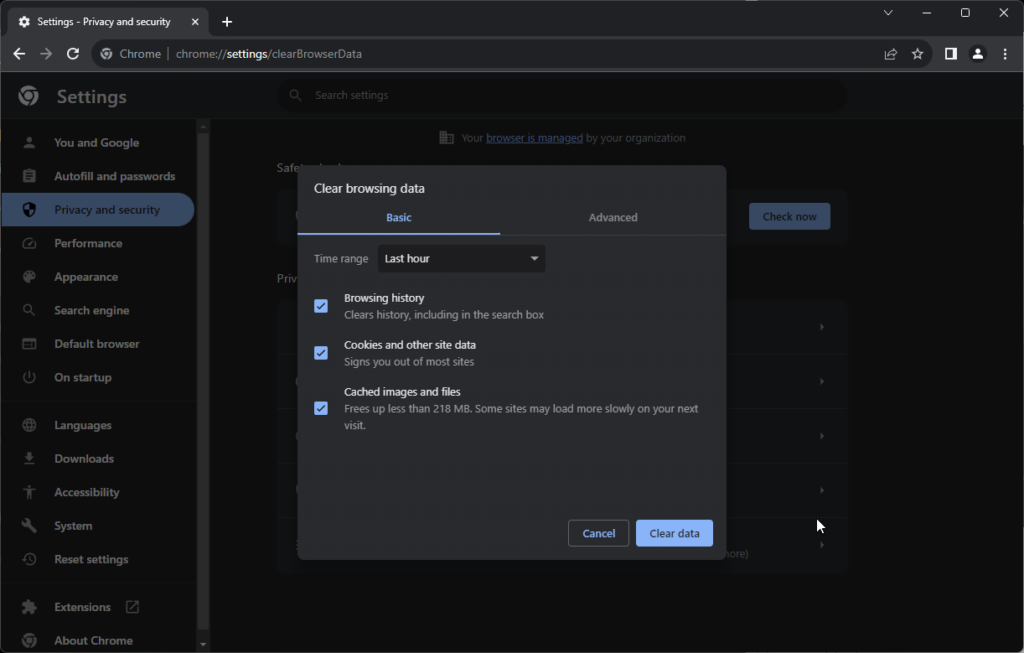
- Specify a time range and select which data to delete.
- Click Clear data
Microsoft Edge
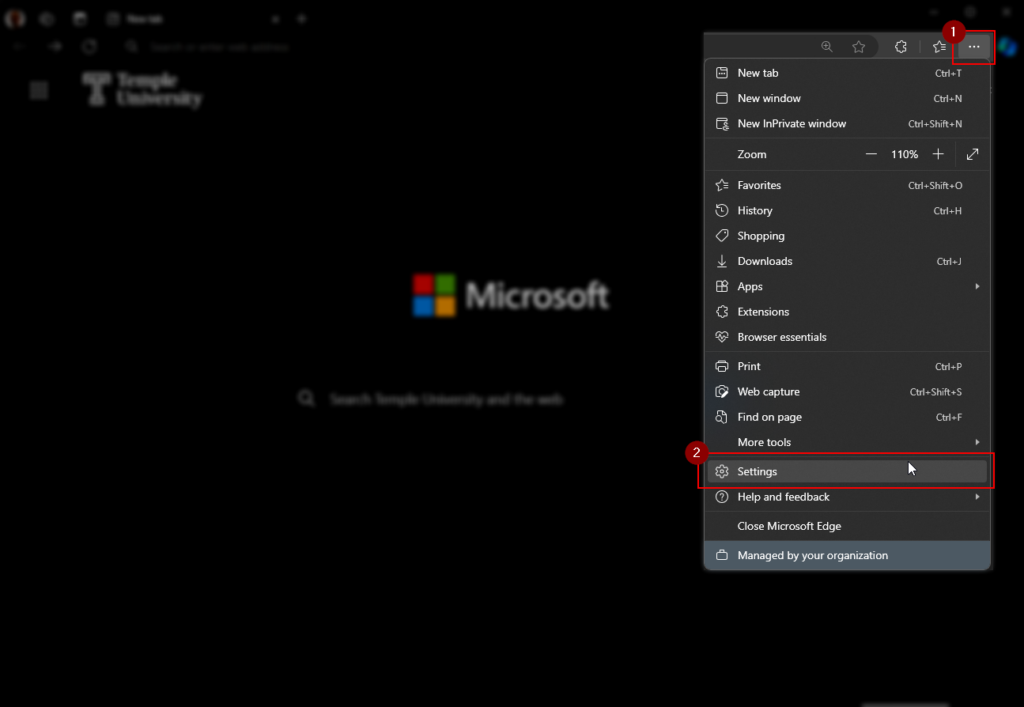
- Click the horizontal ellipses menu in the top right corner of the browser
- Click Settings
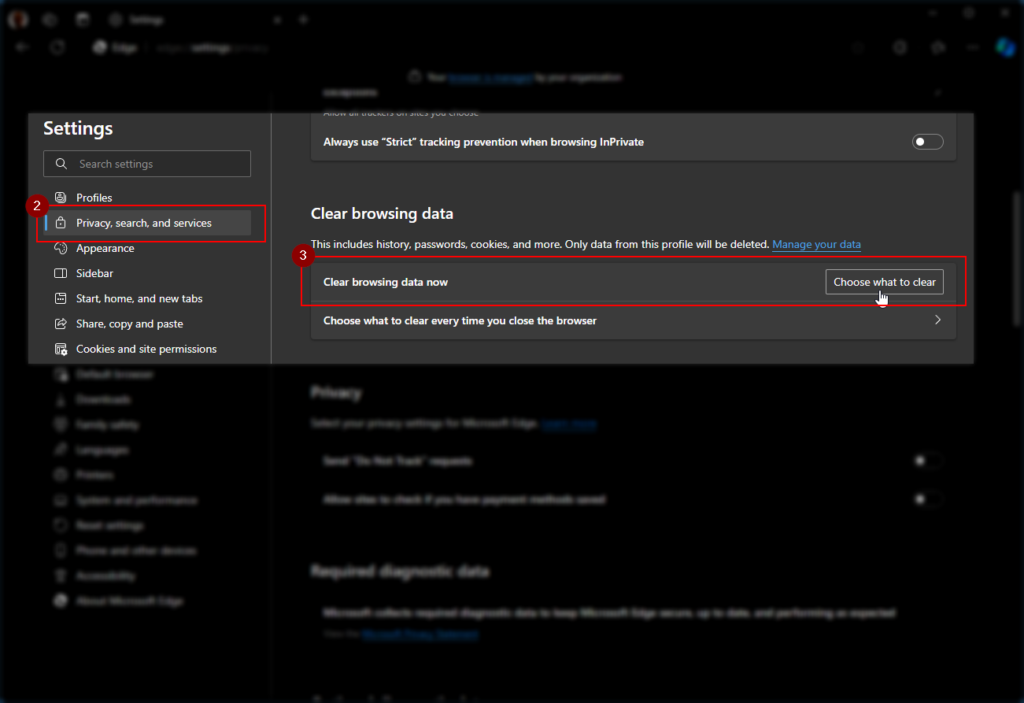
- Select Privacy, search and services
- Under Clear browsing data, click Choose what to clear
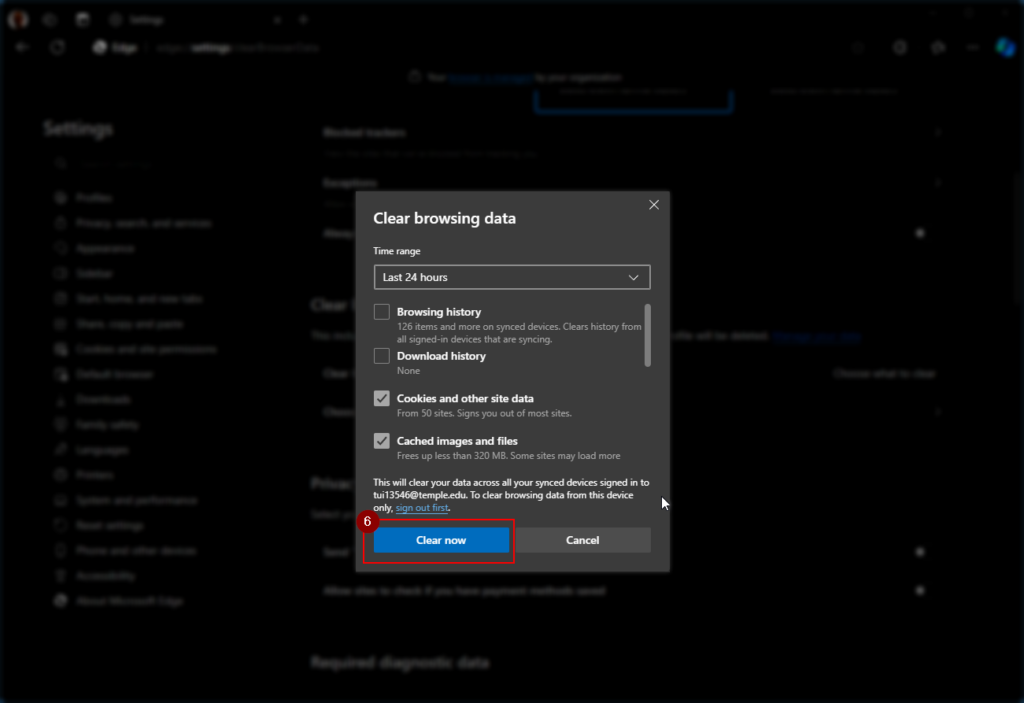
- Select a time range and the data you want to delete.
- Click Clear Now
Mozilla Firefox
- Click the hamburger menu in the top right corner of the browser
- Click History

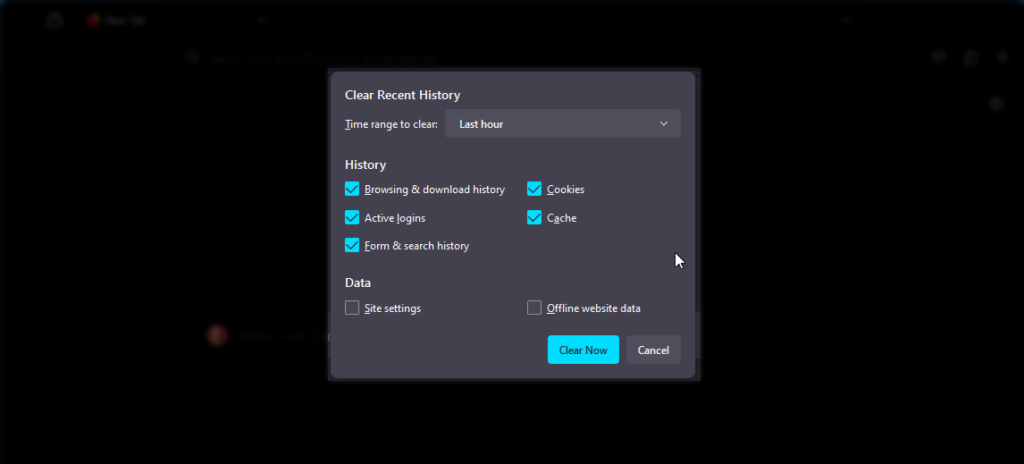
- Click Clear recent history…

- Specify a time range and select which data to clear.
- Click Clear Now