Change your DNS Server
What is a DNS server?
The Domain Name System (DNS) is part of the infrastructure of the internet that assigns names and addresses to websites and computers. A DNS Server keeps a record of what names are assigned to what addresses. For example, when you type “google.com” into your web browser’s URL bar and hit enter, your computer asks a DNS server to retrieve Google’s IP address, which may be something like 142.250.64.110.
Issues with your configured DNS server may cause certain websites or services to be unavailable. In those cases, changing your DNS may help.
Change your DNS server
Warning
Changing your DNS server while connected to a Temple network may prevent you from accessing certain intranet services, such as printers. Use
155.247.225.230and155.247.225.231as primary and alternative DNS servers when connected to a Temple network.
- Open your Windows 10/11 Settings
- Go to “Network & Internet”
- Review the IP address next to “IPv4 DNS servers”
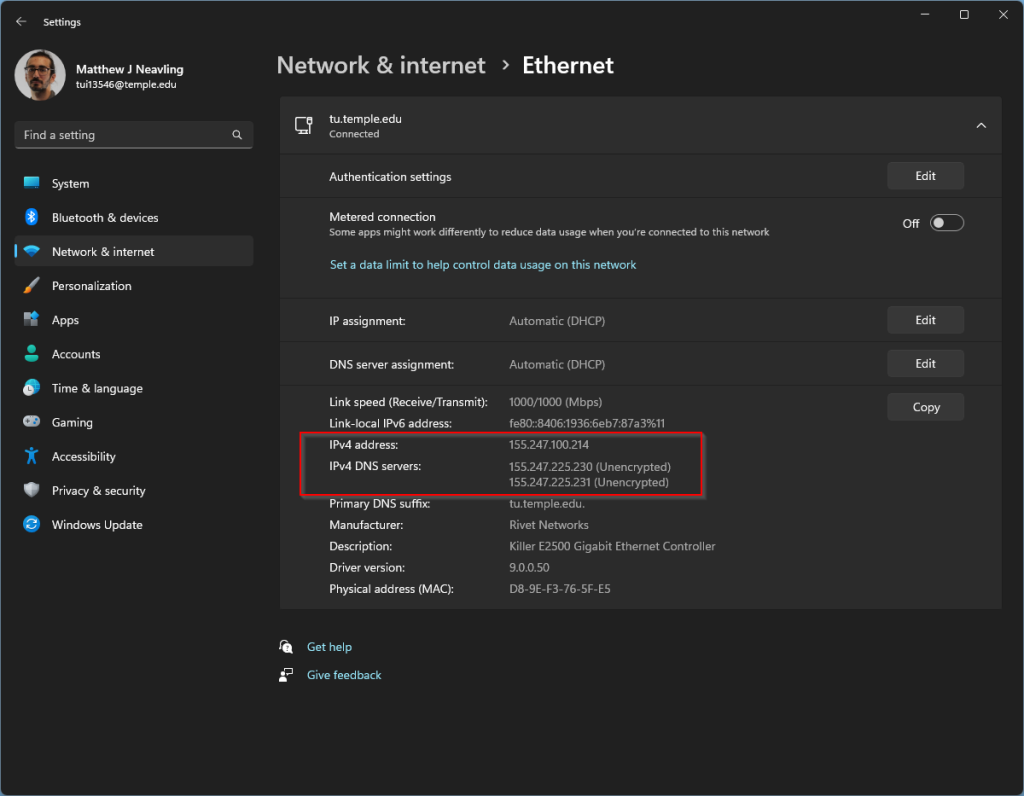
- Next to “DNS server assignment”, click “Edit”
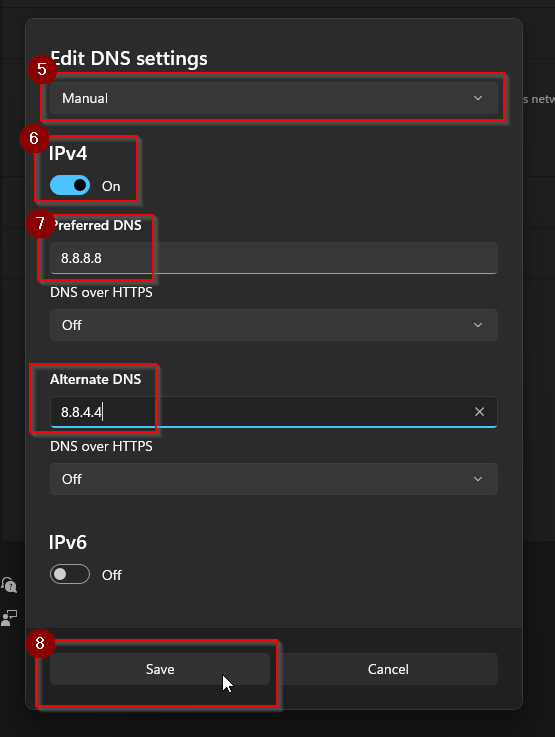
- Select “Manual” from the dropdown list
- Toggle IPv4 to “On”
- Enter the IPv4 address of an accessible DNS server. See Public DNS servers below.
- Click “Save”
Public DNS Servers
These are some trusted public DNS servers.
| Preferred | Alternate | Maintained By |
| 8.8.8.8 | 8.8.4.4 | |
| 1.1.1.1 | 1.0.0.1 | Cloudflare |
| 9.9.9.9 | 149.112.112.112 | Quad9 |