How Can We Help?
Unlock a computer locked by BitLocker
BitLocker is a security feature in Windows that prevents unauthorized access to data on a device. BitLocker encrypts your computer’s drive. When you log in with your Temple Account, the drive is decrypted with a key associated with your account so you can access it. If your laptop is lost or stolen, no one will be able to decrypt the drive without the key associated with your account, which protects any sensitive or confidential data you may have on the device from malicious actors.
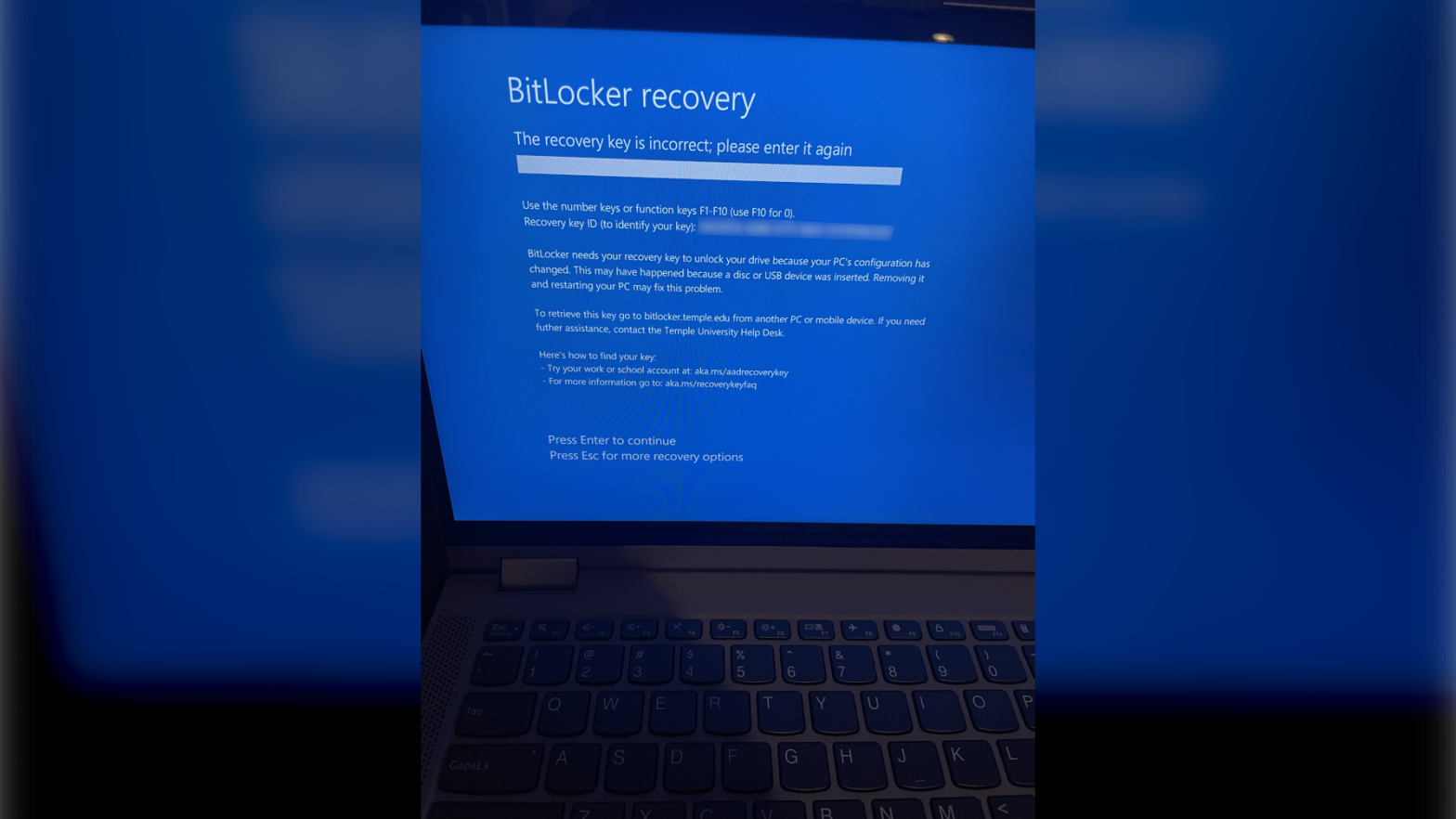
However, BitLocker can also be triggered under certain conditions, like when major changes or updates are made to your device. Follow the directions below to unlock your BitLocker-locked device with your BitLocker key.
How to Find your BitLocker Recovery Key
- Log in to your Microsoft account (with your Temple email)
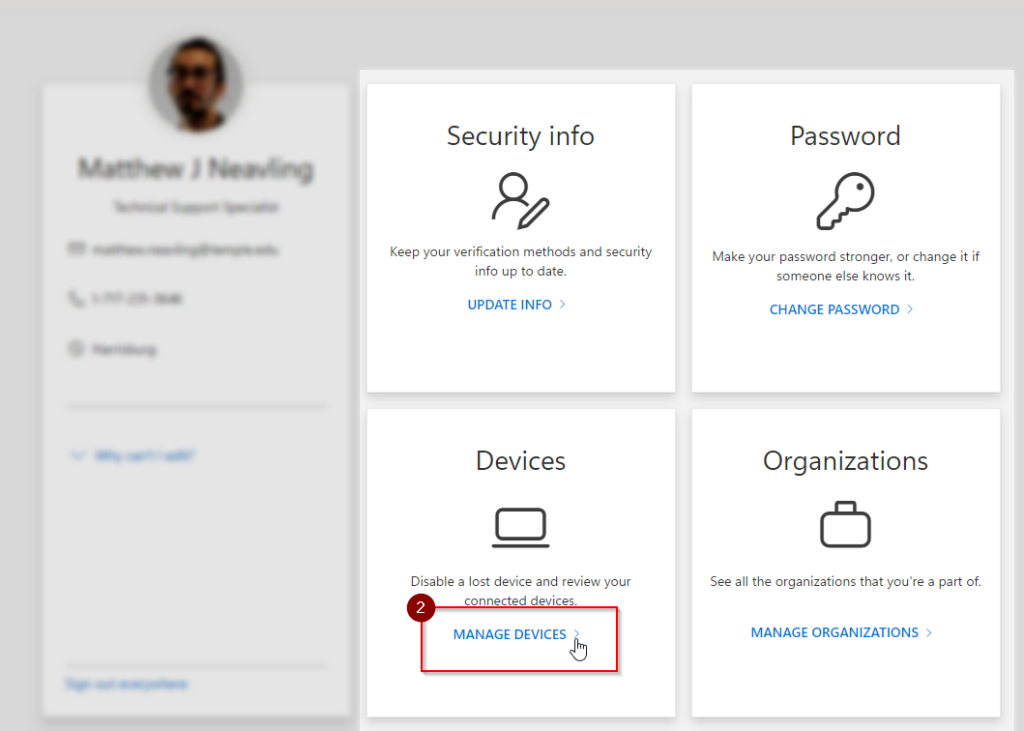
- Go to “Manage Devices”
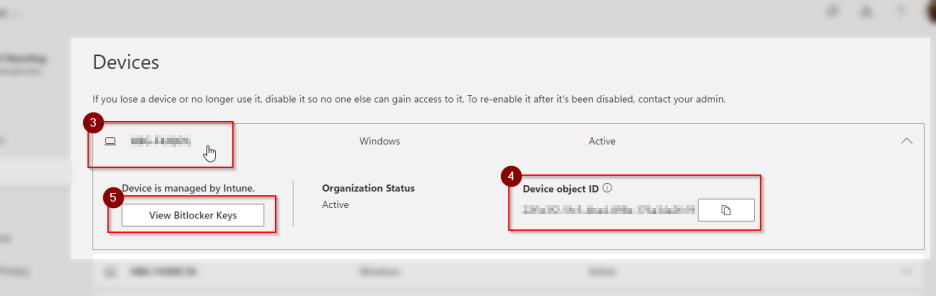
- Find your device by its hostname. Click on the row to expand it.
- Confirm that the “Device object ID” matches the “Recovery key ID (to identify your key)” on the BitLocker Recovery Screen
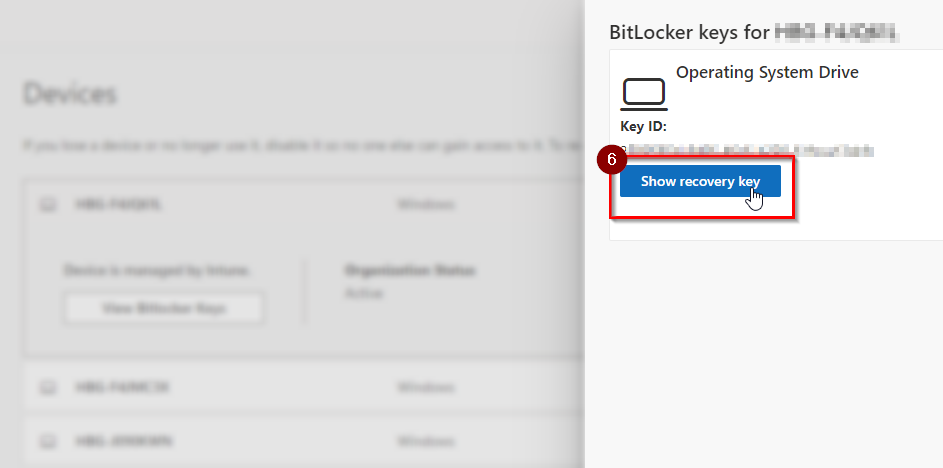
- Click “View Bitlocker Keys”
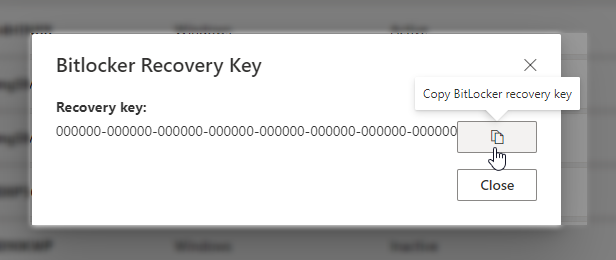
- Click “Show recovery key”
- Enter the Bitlocker Recovery Key shown into the recovery key field on your laptop. Hyphens (
-) will be entered automatically, so you only have to worry about the numbers